How to reserve meeting spaces for ad hoc meetings via the Teams Panel, outside of a meeting room.
Note: Not all Teams Meeting Rooms feature a schedule panel.
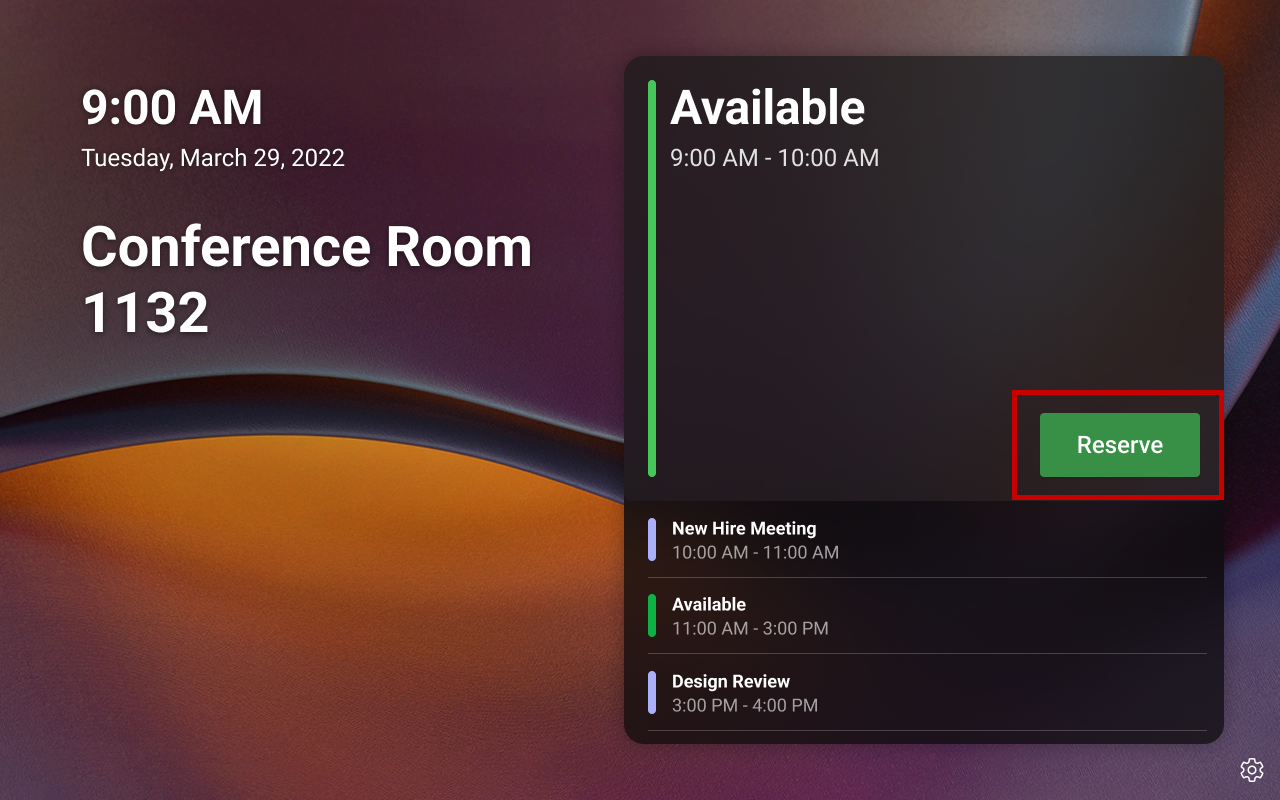
You can reserve an available meeting space directly from panels for an ad hoc meeting. All ad hoc meetings are automatically scheduled as Teams meetings. However, once reserved, you can't release or unreserve that meeting space through panels. Only admins of the device's resource account can cancel the ad hoc meeting (via Outlook or Teams calendar) to unreserve the space.
For ad hoc meetings that are booked directly from panels:
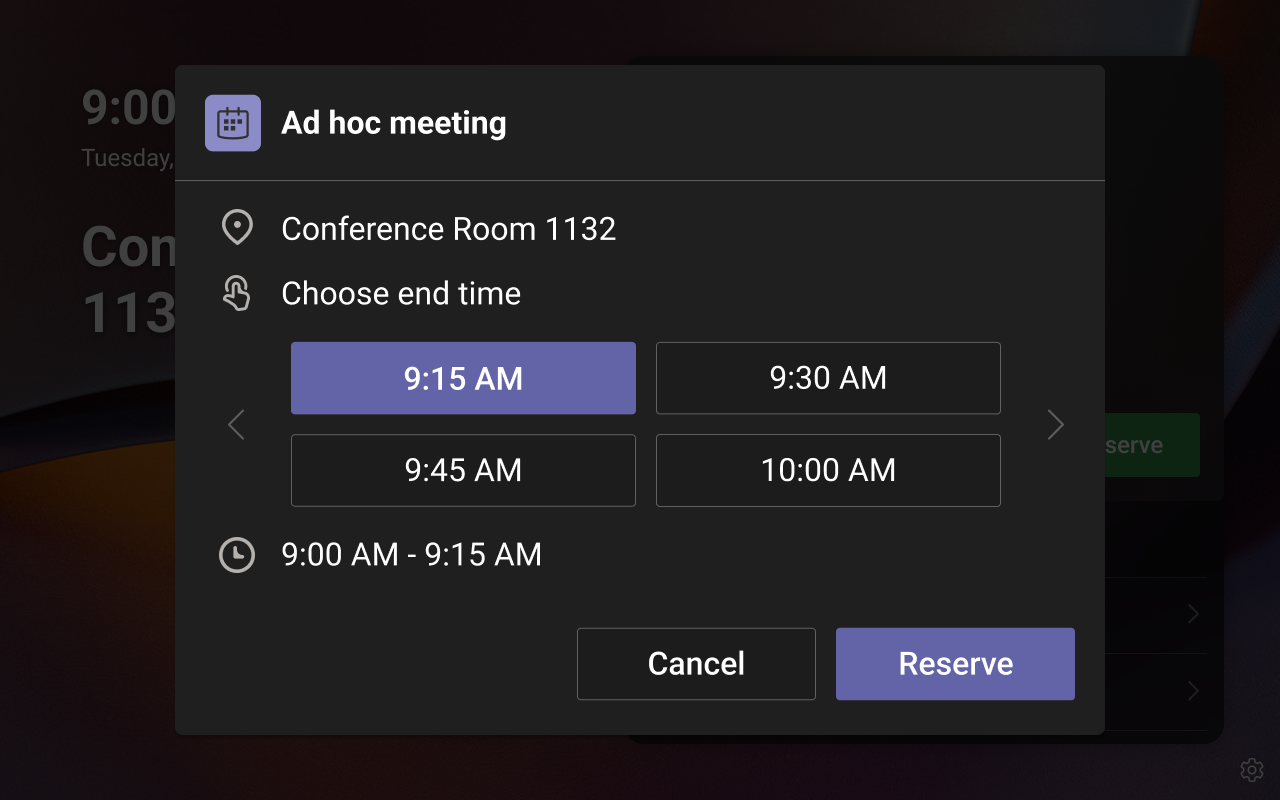
- The start time is always the current time and as such you can't schedule it for a future time.
- The end time can be until the next scheduled meeting or up to 24 hours from the current hour, whichever is earlier. Check the Upcoming Calendar tile on the Home screen to determine the time slots during which the meeting space is available or booked.
To reserve an available meeting space for an ad hoc meeting, select the "Reserve" button on the touch panel and enter the times for your desired meeting.
To start your meeting
The Teams meeting controls are all hosted on the room's console, and written guidance is available in all rooms to assist you. Alternatively, you can follow the guide online: Microsoft Teams Meeting Rooms Quick Start Guide
To end or extend your meeting
To end your meeting early, or extend, if available, please use the manage button and select either the Check Out to end or the Extend Reservation.
Microsoft Teams Meeting Room Etiquette
- Please only use a meeting room if you have made a booking.
- If you no longer need your booking, please cancel the invitation to the meeting room so that the room can be rebooked by someone else.
- Make sure the room you book is big enough to accommodate all in-person attendees. Check the capacity of the room via Room Finder.
- Please do not invite meeting rooms to recurring calendar invitations as these meetings do not always take place and could prevent others from using the space. If you have recurring appointments, please only invite a meeting room to each individual occurrence (not the entire series). Follow the instructions above to ‘Add a Microsoft Teams room to an existing meeting’.
- Check the console in the room to see active bookings so that you can vacate the room before the next booked meeting starts.
- If a space you have booked is occupied when your meeting time comes, please politely ask the occupants to vacate your booked space. They may not have realised it was pre-booked.
- If you have not booked the room you are in and are asked to vacate by someone who has, please do so straight away so that you do not hold up their pre-arranged meeting.
- If you are on campus and you find a room that looks free and is not booked, you can use it there and then, but make sure that you create a booking for the time that you intend to use it to prevent disappointment. Rooms can be booked at any time if available in Room Finder.
- IT Service Centre will not be able to cancel or override bookings to free up space, as the rooms will be allocated on a first come first served basis via Outlook Room Finder. If you cannot find an available room, you will need to consider alternative arrangements. For example, hosting your meeting entirely on Teams in the usual way.
Digital Solutions and Services